Powered By Symoon

Free XML Skins for Blogger

Powered by Blogger

Showing posts with label Blog Tutorial. Show all posts

Tuesday, February 16, 2010

Make a marquee effect

What is the marquee? Marquee is a HTML code to make an object can moving or walk. Marquee code is a popular code because many blogger using this code at them blog's. Marquee effect can make by using ... tag . However marquee just work if viewed at Internet explorer, if you looking at firefox it's bad looking.

The attribute which almost used is :

BGCOLOR="color" → to manage background color of an object (teks, image, ..etc).

DIRECTION="left/right/up/down" → to manage direction of the moving object .

BEHAVIOR="scroll/slide/alternate" → to manage behavior of the moving object .

Scroll → object moving scroll.

Slide → object moving 1 time and then stop.

Alternate → object moving from left to right and then return again.

TITLE='message" → The title or message will emerge when the computer mouse at the marquee object.

SCROLLMOUNT="number" → to manage the speed of marquee, ever greater of number is faster his speed.

SCROLLDELAY="number" → to manage delay time, it's on second.

LOOP="number|-1|infinite" → to manage sum of looping.

WIDTH="number" → to manage width of marquee object, it's on pixel (px) or persen (%).

So that clearer I will show the example :

The example of marquee from direction :


this is example of marquee, the text moving from rigt to the left


the result :

this is example of marquee, the text moving from rigt to the left


Change the word "left" with other word what you want, there is : right, up, down.

The example of marquee from behavior :


this is example of marquee from behavior


The result :

this is example of marquee from behavior

The example from marquee of text variation with background color.


The example of marquee of text variation with background color.


The result :


The example of marquee of text variation with background color.


There is differ various from marquee, namely when computer mouse is reside in the marquee area the object will stop and when computer mouse in re-shifting to the other place the object will moving again. To make this effect only adding a few code at the marquee code.

For example, Please drop your computer mouse to the marquee area :


Please drop your computer mouse to here and you will be see the effect


The result :

Please drop your computer mouse to here and you will be see the effect

The example of marquee with links object :


Rubrik Elektronik


Blog kang Rohman


UniQue Template


CSS Library


The result :


Rubrik Elektronik

Blog kang Rohman

UniQue Template

CSS Library


Perhaps only that for example, please creat other various of marquee effect with your self. See you at may next post. Happy blogging! 

Monday, February 8, 2010

How to Remove the Number of Label

Somebody ask to me, how how to remove teh number of label? allright, do you understand the meaning of the above question? please take a look at the following picture :

label count

Do you wish to eliminate the number at lable too? this is the steps :


  1. Login to blogger with your ID
  2. After entering the dashboard page , click Layout. Please saw the picture :
  3. Then click edit HTML tab. Please saw the picture :
  4. Click the Download full template link. Save your template:
  5. Please mark the little box beside Expand Widget Templates. Wait for a moment.
  6. Go to your template code, and find the code like this :
  7. ()
  8. If you was found the above code, please delete.
  9. Click Save Template button.
  10. Done. Please see the result.

Now your label will not with number. 

Add a Clock to Your Blog

So that your blog see interesting and beautiful, you can add some blog accessories, one of them is by add a Clock. If you interesting to add a clock to your blog, you can get it for free at http://www.clocklink.com site. The example of clock from http://www.clocklink.com is like this :


Feel interest to add a clock to your blog? please follow the steps :

Step #1

  1. Please check out http://www.clocklink.com.
  2. Click at "Gallery" tab.
  3. Click at the categories of clock which you want, there is Analog, Animal, Animation, Count Down & Up, Dark Background, Digital, Holidays, Logo & Custom, Seasons, Sport, Transparent, and Wallpaper.
  4. If you have found the clock you wish, click at "View HTML tag" below of the clock.
  5. Click at "Accept" button.
  6. Choose the time which match with your zone beside "Timezone" text. Example : for west indonesia, choose GMT+7:00.
  7. Set the measure of the clock beside "Size" text.
  8. Copy the code and then paste at Notepad or other text editor. Save into your computer.
  9. Close your browser.

Step #2


  1. Login to blogger with your ID.
  2. After entering the dasboard page , click Layout. Please see the picture :
  3. layout
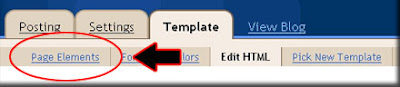
  4. Click at Page Element tab. See the picture below :
  5. page element
  6. Click at Add a Page element.
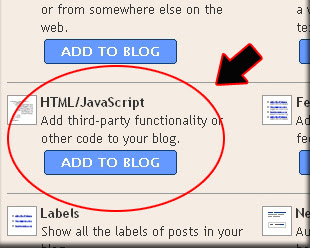
  7. After emerging pop up window , Klik add to blog button for the things HTML/JavaScript. See the picture following :
  8. javascript
  9. Open your Clock code, copy and then paste into available column.
  10. Click   save changes   
  11. Done. Please see the result.

Now you have had a Clock at your blog. 

Sunday, February 7, 2010

How to Make a Logo and Image Button.

If you are which have ever been skilled use graphical design program such as adobe photoshop, coreldraw and another program, make a logo is not a difficult work, and possible this tutorial not interesting to reading. However perhaps there are some from the readers is same with with me that is not expert at graphical design program, you can use the site provide this service. One of the sites which provide this service is http://www.cooltext.com.

if you use service from cooltext.com, you'd be very easy to make a logo or image button, this is the steps :


  1. Please visit http://www.cooltext.com.
  2. For create a Logo, click at Logos tab.
  3. Click at the example logo style which you love.
  4. Write the text wishing in making the logo beside Logo Text. For example : Blog Tutorial.
  5. Write the measure of text in wishing beside Text Size. For example : 50.
  6. Click at the colourful icon beside Text Color to choose the color of text. Please choose the colour whict you want.
  7. Choose the format of image beside File Format. Better .JPG or .GIF
  8. Click at Render Logo button.
  9. Wait for a moment, your logo is processed.
  10. See the logo result, if you want to change the logo, click at Edit this Logo. If you want to download the logo, click at Download Image. Save into your computer.
  11. Done. Now you have had a Logo.


If you want to make a Image Button, please following the above step, but don't choose logos, please choose buttons


Allright, so that the logo can display at your blog, you must upload your logo to the Image Hosting. For upload an image to image hosting , you can read at this post. For example, I have had upload my logo to http://www.phtobucket and the image URL is :

http://i162.photobucket.com/albums/t253/rohman24/logoblogtutorial.jpg

To display this image URL, you only add a little code like this :

<span class=Blog tutorial">


This is the result :


Blog tutorial

If you want to resize the image, just add the value of width and hight. For example :

Blog tutorialwidth="130" height="40">


This is the result :

Blog tutorial

If your logo want to make a link, you must have a link target. for example : I want to the logo linked to http://template-unik.blogspot.com. This is the code :

Blog tutorial


This is the result :

Blog tutorial

How about the Image Button, that is the same way with Logo. This is the example for image button with link :

blog tutorial

Where I place the above code? if you post, please at Edit HTML and if want to sidebar, please choose HTML/Javascript element.

Friday, February 5, 2010

Make a Drop Down Menu With Same Width


Hi every body ! meet you again at my new tutorial. Several weeks ago, I'm ever posting about How to make a drop down menu at this post. One of my reader ask to me, it's the question :


Hi Rohman,

Thanx for the piece of code! Now I have a set of drop down menus on my blog. But I have one query... Is there any way I could have them all of the same width? It kinda looks ugly to have different sizes for each drop down menu... Thanx in advance!


Allright, i will give you an example :


Is there looks ugly for you? don't worry, you can make a drop down menu with same width. Only add a little code, your menu will looks with same width. it's the code :

style="width:200px"


200px is value of width, you can change this number with other value, maybe 150px, 220px, or other value.

Now, i will give you an example. this is my previous code :


the results :


And this is the code with : style="width:200px" :


the results :


What dou you think about this? looks prety?


Except same width, with style you can manage the other function such as the color of alphabet, background of your menu, and etc.

for example :

style="width:200px;color:#ff0000;background:#B2DDFB"


#ff0000, #B2DDFB is the code of color, you can change this code with your color code.

this is the example of drop down menu with color and background color :


the results :


Hmmmm.. how do think about this menu?